


Have you ever wondered if your mobile device could replace your traditional television box? Many viewers now seek flexible ways to watch their favourite programmes while on the move. By mastering the IPTV Android setup, you unlock a world of digital entertainment that fits right in your pocket.
This IPTV on Android tutorial simplifies the technical process for every user. We focus on reliable media players and stable internet connections to ensure your viewing remains smooth and buffer-free. Following this IPTV setup guide will help you configure your device with confidence and ease.
Learning how to set up IPTV on Android is a straightforward task when you have the right instructions. We prioritise your security and streaming quality throughout this walkthrough. Prepare to transform your phone or tablet into a powerful personal cinema today.
Key Takeaways
- Choose a reputable media player to ensure high-quality video playback.
- Always maintain a stable internet connection for an uninterrupted experience.
- Prioritise your digital security by using trusted sources for your applications.
- Organise your channel lists efficiently to improve your navigation speed.
- Regularly update your software to benefit from the latest performance improvements.
Understanding the Basics of IPTV Technology
Modern television has evolved significantly, moving away from traditional aerial signals toward internet-based delivery. This shift allows users to access a vast array of global content directly through their mobile devices. Following this IPTV on Android tutorial will help you grasp how these systems function behind the scenes.
How IPTV Streams Content Over the Internet
Unlike traditional broadcasting, which relies on satellite or terrestrial signals, IPTV operates as a client-server system. Your Android application acts as the client, requesting data from a remote server to display live video feeds.
The app typically parses M3U playlists or authenticates via Xtream Codes API to fetch these streams. Once the connection is established, the server delivers the content in small data packets, which your device reassembles into a smooth video stream.
Legal Considerations and Licensing in the United Kingdom
When using streaming services, it is vital to remain compliant with local copyright laws. In the United Kingdom, users should only access content through officially licensed providers to ensure they are not supporting unauthorised sources.
Distinguishing between legitimate services and pirated content is a key part of this IPTV on Android tutorial. Always verify that your service provider holds the necessary broadcast rights for the channels they offer. By choosing reputable platforms, you protect your personal data and support the creators of the content you enjoy.
Essential Requirements for Your IPTV Android Setup
A successful IPTV Android setup relies heavily on the quality of your underlying hardware and network. Without the right foundation, you may experience frustrating buffering or poor image quality during your favourite programmes.
Whether you are using a mobile device or a dedicated Android TV box setup, meeting specific technical benchmarks is vital. These requirements ensure that your device can process high-bitrate streams without stuttering.
Hardware Specifications for Smooth Playback
To enjoy a seamless viewing experience, your device needs sufficient processing power. We recommend a minimum of 2GB of RAM, though 4GB is ideal for handling modern, resource-heavy applications.
Furthermore, ensure your device features a capable GPU that supports hardware decoding. This allows the processor to handle video streams efficiently, preventing the device from overheating or slowing down during long sessions.
If you are configuring an Android TV box setup, look for models that support 4K resolution and H.265 (HEVC) codec compatibility. These features are essential for modern high-definition content delivery.
Network Connectivity and Bandwidth Recommendations
Even the most powerful hardware will fail if your internet connection is unstable. For a reliable IPTV Android setup, a stable broadband connection is non-negotiable.
We suggest a minimum download speed of 25 Mbps for high-definition streaming. If you plan to watch 4K content, aim for at least 50 Mbps to maintain consistent quality.
Whenever possible, connect your device directly to your router using an Ethernet cable. While Wi-Fi is convenient, a wired connection significantly reduces latency and prevents the signal drops often associated with wireless interference.
Selecting the Right IPTV Player Application
Achieving the best IPTV setup begins with selecting a robust and user-friendly player. The application acts as the bridge between your service provider and your screen, directly influencing your overall viewing quality. A well-optimised player ensures that your streams remain stable and easy to navigate.
When evaluating different software, consider how the interface handles your specific media requirements. A high-quality player should feel intuitive, allowing you to switch between channels without unnecessary lag or technical friction.
Features to Look for in a Reliable IPTV Player
To ensure a smooth experience, you must prioritise specific technical capabilities. A reliable player should offer hardware-accelerated playback, which reduces the strain on your Android device’s processor. This feature is vital for maintaining high-definition stream quality without overheating your phone or tablet.
Furthermore, look for these essential features to guarantee a premium experience:
- EPG Support: A functional Electronic Programme Guide is necessary for tracking live schedules.
- Protocol Compatibility: Ensure the app supports common formats like M3U playlists and Xtream Codes API.
- Customisation Options: The ability to organise channels into favourites lists improves daily usability.
- Regular Updates: Developers who frequently update their software provide better security and compatibility with modern Android versions.
Comparing Popular Options like TiviMate and IPTV Smarters Pro
Two of the most widely recognised applications for achieving the best IPTV setup are TiviMate and IPTV Smarters Pro. Both offer distinct advantages depending on your technical comfort level and desired feature set.
| Feature | TiviMate | IPTV Smarters Pro |
|---|---|---|
| Interface Design | Modern and sleek | Functional and classic |
| Ease of Use | High | Moderate |
| Customisation | Extensive | Standard |
TiviMate is often praised for its polished, modern interface and smooth navigation, making it a favourite for users who value aesthetics. Conversely, IPTV Smarters Pro is highly regarded for its broad compatibility and straightforward setup process. Choosing between them depends on whether you prefer a highly customisable environment or a reliable, “plug-and-play” experience.
Downloading and Installing Your Chosen IPTV App
Proper installation is the foundation of a reliable streaming setup on your Android tablet or phone. Completing an Android IPTV installation correctly ensures that your software runs efficiently without unnecessary errors or security vulnerabilities.
Navigating the Google Play Store Safely
The safest way to acquire your streaming software is through the official Google Play Store. This platform vets applications for malicious code, providing a secure environment for your device. When you search for your preferred player, always verify the developer name to ensure you are downloading the authentic version rather than a clone.
Learning how to set up IPTV on Android starts with clicking the install button on a verified store listing. Once the download finishes, the system automatically handles the installation and permission requests. This method is highly recommended for beginners because it minimises the risk of exposing your personal data to harmful software.
Sideloading Applications via APK Files
Sometimes, you may need to install an application that is not available on the official store. This process, known as sideloading, involves downloading an APK file directly from a website. You must be extremely cautious when choosing your source, as many third-party sites host modified files containing malware.
To perform a step-by-step IPTV setup using an APK, you must first enable ‘Unknown Sources’ in your device settings. Always remember to disable this setting immediately after the installation is complete to maintain your device’s security. Only download files from the official developer’s website to avoid potential risks to your privacy.
| Method | Security Level | Ease of Use | Updates |
|---|---|---|---|
| Google Play Store | High | Very Easy | Automatic |
| Sideloading (APK) | Low | Moderate | Manual |
| Third-Party Stores | Medium | Easy | Variable |
Configuring Your IPTV Service Credentials
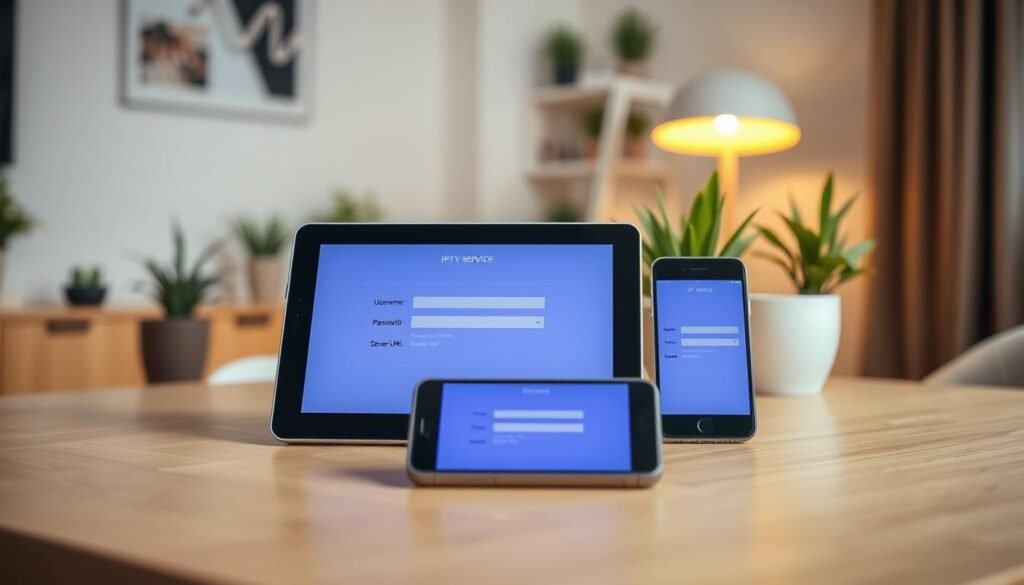
Once you have installed your player, the next phase of your Android IPTV configuration involves linking your service provider. Proper entry of these details is the most common hurdle during the Android IPTV installation process. By ensuring every character is accurate, you can avoid frustrating login failures and enjoy a seamless viewing experience.
Understanding M3U Playlists and EPG URLs
An M3U playlist acts as a digital map for your streaming application. It contains the specific file paths for all the channels provided by your service. When you perform a step-by-step IPTV setup, you will often be asked to provide this link to populate your channel list.
The EPG URL, or Electronic Programme Guide, is equally vital for a user-friendly interface. It fetches the schedule data so you can see what is currently airing and what is coming up next. Without a valid EPG link, your guide will remain empty, making it difficult to navigate your favourite programmes.
Inputting Xtream Codes API Details
Many modern players prefer the Xtream Codes API method over traditional playlists. This method requires a specific username, password, and server URL provided by your service. It is generally more stable and allows the application to sync your channel categories and guide data automatically.
When entering these details, ensure there are no trailing spaces or typos. Most applications will verify the connection immediately after you click the login button. If the authentication fails, double-check your credentials for any case-sensitive errors.
| Feature | M3U Playlist | Xtream Codes API |
|---|---|---|
| Setup Complexity | Simple URL entry | Requires three credentials |
| Data Syncing | Manual refresh often needed | Automatic and fast |
| Performance | Standard | Optimised for speed |
| Guide Integration | Requires separate EPG URL | Built-in automatic loading |
Optimising Your Android Device for Streaming
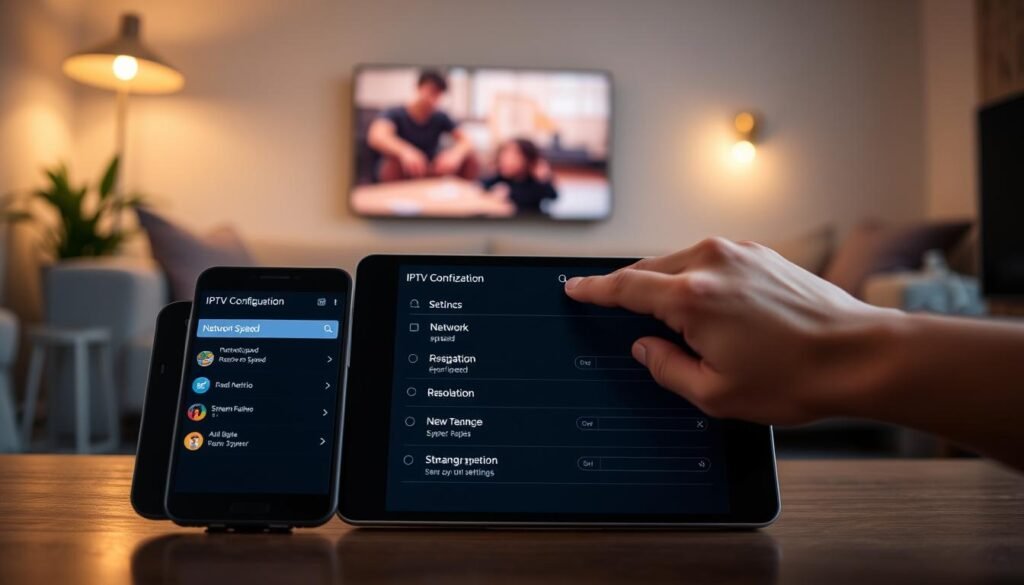
Achieving a smooth stream requires more than just a stable internet connection; it demands proper device optimisation. When you finalise your Android IPTV configuration, you create a foundation for high-quality playback. Taking a few extra minutes to refine your settings can prevent common issues like stuttering or sudden drops in resolution.
Adjusting Buffer Settings for Better Performance
Buffering is often the result of network congestion or minor packet loss during data transmission. Most professional players allow you to manually adjust the buffer size to compensate for these fluctuations. By increasing the buffer, you provide your device with a larger cushion of data, which helps maintain a steady stream even when your internet speed dips.
- Small Buffer: Ideal for high-speed, stable connections with low latency.
- Medium Buffer: A balanced choice for most home Wi-Fi environments.
- Large Buffer: Recommended for users experiencing frequent network instability or high traffic.
If you are using an Android TV box setup, you might find that a larger buffer significantly improves your experience. Always test different settings to see which one provides the most consistent results for your specific network environment.
Managing Storage and Cache for App Stability
Many streaming devices suffer from performance degradation when internal storage becomes cluttered. Over time, temporary files and cached data can accumulate, leading to sluggish app responses or unexpected crashes. Regularly clearing the cache is a vital part of maintaining a healthy Android TV box setup.
To keep your system running efficiently, consider these maintenance tips:
- Navigate to your device settings to clear the cache for your specific IPTV application.
- Uninstall unused apps to free up valuable internal memory.
- Ensure your firmware is up to date to benefit from the latest performance patches.
Properly managing your resources ensures that your Android IPTV configuration remains stable during long viewing sessions. By keeping your device clean and your settings optimised, you can enjoy a seamless entertainment experience without the frustration of hardware-related interruptions.
Advanced Customisation and Interface Personalisation
Achieving the Best IPTV setup requires more than just a stable connection; it demands a personalised touch that reflects your viewing habits. By tailoring your interface, you can transform a standard application into a bespoke media centre that feels intuitive and efficient for daily use. For current plans and pricing, check our pricing page. Want to use a Firestick? See our IPTV on Firestick UK guide. Got a Smart TV? Read our IPTV on Smart TV setup guide.
Organising Channels and Creating Favourites Lists
Most modern players allow you to manage your channel list by creating custom groups or categories. This essential feature helps you hide unwanted content and focus on the sports, news, or entertainment channels you watch most frequently.
You should look for the option to mark specific channels as favourites. By adding these to a dedicated list, you gain instant access to your preferred content without scrolling through hundreds of options. This simple organisational step is a hallmark of the Best IPTV setup for any busy household.
Customising the Electronic Programme Guide Layout
The Electronic Programme Guide (EPG) is your primary tool for navigating live broadcasts. Customising its appearance can significantly improve your browsing speed and overall user experience.
Many applications allow you to adjust the visual density of the guide, letting you choose between a compact list or a more detailed view with programme descriptions. You can also change the time format or the number of hours displayed on the screen at once. These adjustments ensure that your Best IPTV setup remains clear and easy to read, even on smaller tablet screens.
Troubleshooting Common IPTV Connection Issues
Maintaining a seamless IPTV experience requires knowing how to handle common connection hiccups effectively. Even with a perfectly configured device, you may occasionally encounter technical hurdles that disrupt your viewing. Fortunately, most of these problems are minor and can be resolved without needing to reinstall your entire application.
Resolving Authentication Errors and Login Failures
If you find yourself unable to access your service, the issue is often linked to provider-side credential errors. First, double-check that your username and password have been entered correctly, as these fields are case-sensitive. It is common for a simple typo to prevent a successful connection.
If your credentials are correct, verify that your subscription is still active by contacting your provider. Sometimes, an expired account or a server-side maintenance window can trigger a login failure. Ensure your M3U playlist URL or Xtream Codes API details are up to date, as providers occasionally update these links to improve security.
Fixing Buffering and Stream Interruption Problems
Buffering is usually a sign of network instability or insufficient bandwidth. To improve your stream quality, try restarting your router to clear any temporary network congestion. If the problem persists, consider connecting your Android device directly to your router via an Ethernet cable for a more stable connection.
You can also try adjusting your DNS settings to a more reliable public server, which often helps bypass local network restrictions. Additionally, clearing the application cache within your Android settings can resolve performance lags. Regular maintenance of your app data ensures that your streaming software remains responsive and stable during peak viewing hours.
Security Best Practices for Android IPTV Users
Safeguarding your personal information is a critical step in enjoying a seamless and worry-free streaming experience. When you use third-party applications on your mobile device, maintaining robust Android IPTV security becomes a necessity rather than an option. By taking a few simple precautions, you can significantly reduce the risk of malware, unauthorised access, and potential data theft.
The Importance of Using a Virtual Private Network
A Virtual Private Network, or VPN, acts as a secure tunnel for your internet traffic. When you use a reliable VPN for streaming, your data is encrypted, making it unreadable to your Internet Service Provider (ISP) and other prying eyes. This is particularly important in the United Kingdom, where ISPs may monitor traffic patterns to throttle bandwidth during peak hours.
Beyond encryption, a VPN masks your actual IP address by routing your connection through a remote server. This adds an essential layer of anonymity to your online activities. Choosing a reputable provider ensures that your connection remains stable without compromising your download speeds.
Protecting Your Personal Data While Streaming
Effective data protection starts with being mindful of the permissions you grant to your applications. Many third-party apps request access to sensitive areas of your phone that are not required for video playback. You should be extremely cautious if an app asks for the following permissions:
- Accessibility Services: This can allow an app to read your screen or perform actions on your behalf.
- Usage Access: This grants the app the ability to track which other applications you are using.
- Contacts or Location: Streaming apps rarely need access to your personal address book or GPS data.
Always review the permissions list before you click install on any new application. If an app seems to demand excessive access, it is safer to uninstall it immediately and look for a more reputable alternative. By staying vigilant and following these security habits, you can enjoy your favourite content with peace of mind, knowing your Android IPTV security is well-maintained.
Conclusion
Transforming your mobile device into a powerful media centre is a rewarding project. This IPTV setup guide provides the essential framework to ensure your streams remain stable and secure.
You now possess the knowledge to select high-quality applications like TiviMate or IPTV Smarters Pro. Proper configuration of your network settings creates a seamless viewing environment for your favourite programmes.
Digital safety remains a vital component of your streaming routine. Always utilise a reputable Virtual Private Network to protect your personal data from prying eyes while you browse.
Adhering to this IPTV setup guide helps you maintain legal compliance across the United Kingdom. Sourcing content from legitimate providers ensures that your service stays reliable and high-performing over the long term.
Take a moment to explore your new interface and organise your channels to suit your personal preferences. Enjoy the flexibility and convenience that modern streaming technology brings to your Android tablet or phone.
Pingback How to Install IPTV on Firestick UK (2026)